
▤
Server Management
Organize servers into groups; select multiple, drag to move, or copy configs. Deleted connections stay in a 30-day recycle bin and can be restored anytime.
LIULI Shell is a cross-platform SSH client.
It brings connection management, an interactive terminal, SFTP file transfer, live monitoring, and config sync into one desktop app—built for developers and sysadmins who manage multiple servers.
Windows 10/11 offers installer and portable builds; Linux and macOS are built from source. Both Windows builds have the same features.
The installer includes a setup wizard and creates shortcuts; the portable build runs after extraction—ideal for USB drives or temporary environments.
Open 夸克网盘 ↗Better for overseas networks; release assets track repository commits.
Go to GitHub Releases ↗Better for mainland China; portable assets stay in sync with the repository.
Go to Gitee Releases ↗Install dependencies and package on the target system. Outputs deb, AppImage, tar.gz, and macOS dmg/zip.
%APPDATA%\LIULI Shellby default. Upgrades and reinstalls keep it. To move to another computer, use cloud sync or export the config from Settings.
Linux and macOS packages must be built on the target OS. Run the commands one at a time—don't paste the whole block. The script detects your distro, installs dependencies, and asks which package type to build.
Pick one source (Gitee or GitHub), then enter the directory and run the build script.
Gitee clones into liuli-shell; GitHub defaults to Liulishell. The commands below clone into liuli-shellso every later command stays the same.
Git is required.Step 0 installs Git; step 1 keeps only one source; step 2 runs the build script. Run build commands only after cloning finishes.
# 0) Git is required; skipped if installed (use dnf / pacman on other distros)
command -v git >/dev/null || sudo apt-get update && sudo apt-get install -y git

# 1) Remove old directories, then clone one source (Gitee or GitHub)
# Gitee (recommended in mainland China; default dir is liuli-shell)
rm -rf liuli-shell Liulishell && git clone https://gitee.com/liuliwanjiaweb/liuli-shell.git liuli-shell
# GitHub (recommended overseas; default dir is Liulishell, here explicitly liuli-shell)
rm -rf liuli-shell Liulishell && git clone https://github.com/LIULIWANJIA/Liulishell.git liuli-shell

# 2) Enter the project and build: detect distro → install system deps → choose deb / AppImage → package → offer to install
cd liuli-shell && bash scripts/build-linux.sh
Output goes to dist/. The script prompts you to choose 1 = deb / 2 = AppImage / 3 = both; to build only .tar.gz use bash scripts/build-linux.sh tar. The script handles Ubuntu 24.04+ *t64 package fallbacks automatically. Non-interactive environments such as CI won't auto-install; install the artifact manually. If something is wrong, run bash scripts/build-linux.sh check to diagnose; the script switches mirrors automatically when Electron downloads are slow.
# 3) If dependencies fail or the build errors, try these in order
bash scripts/build-linux.sh repair
bash scripts/build-linux.sh deps
bash scripts/build-linux.sh
Existing tools are skipped.Homebrew asks for your password during install. After cloning, install dependencies and package; choose Intel or Apple Silicon as needed.
# Base tools (skipped if installed; xcode-select opens a dialog—wait for it to finish)
xcode-select --install 2>/dev/null || true
command -v brew >/dev/null || /bin/bash -c "$(curl -fsSL https://raw.githubusercontent.com/Homebrew/install/HEAD/install.sh)"
# Add Homebrew to PATH after installing (Intel uses /usr/local/bin/brew)
if [ -x /opt/homebrew/bin/brew ]; then eval "$(/opt/homebrew/bin/brew shellenv)"; elif [ -x /usr/local/bin/brew ]; then eval "$(/usr/local/bin/brew shellenv)"; fi
# Node ≥ 18 is required; install 20 if missing or too old, then verify
node -v 2>/dev/null | grep -qE '^v(1[89]|[2-9][0-9])' || brew install node@20
brew link --overwrite --force node@20 >/dev/null 2>&1 || true
node -v && npm -v

# Remove old directories, then clone one source (Gitee or GitHub)
rm -rf liuli-shell Liulishell
# Gitee (recommended in mainland China; default dir is liuli-shell)
git clone https://gitee.com/liuliwanjiaweb/liuli-shell.git liuli-shell
# GitHub (recommended overseas; default dir is Liulishell, here explicitly liuli-shell)
git clone https://github.com/LIULIWANJIA/Liulishell.git liuli-shell

cd liuli-shell
npm ci || npm install      # falls back to npm install on failure
npm run vendor
# If Electron downloads are slow in mainland China, uncomment the next two lines (optional)
# export ELECTRON_MIRROR=https://registry.npmmirror.com/-/binary/electron/
# export ELECTRON_BUILDER_BINARIES_MIRROR=https://registry.npmmirror.com/-/binary/electron-builder-binaries/
npm run dist:mac                              # build x64 + arm64 together
npx electron-builder --mac dmg zip --arm64    # Apple Silicon only
Output goes to dist/(.dmg / .zip).npm run vendor copies xterm assets to src/renderer/vendorbefore packaging; Intel and Apple Silicon artifacts are not interchangeable. If Gatekeeper blocks the unsigned app, right-click and choose Open.
Use Gitee in mainland China; set mirror variables if Electron downloads are slow.
Import JSON files exported by FinalShell or a whole config folder. The importer reads connection details, rebuilds the group hierarchy, and shows a summary before writing.
Drag files here; you can select multiple JSON files or the whole config folder.
Folders create groups by hierarchy (up to three levels). JSON files deeper than level three go into the matching top-level group, regardless of the target group.
Usage questions, feature requests, and release news are shared in the groups. Join the platform you use.
Users in mainland China can report issues and share configs and tips in the QQ group.
Users outside mainland China can get the same updates and discussions on Telegram.
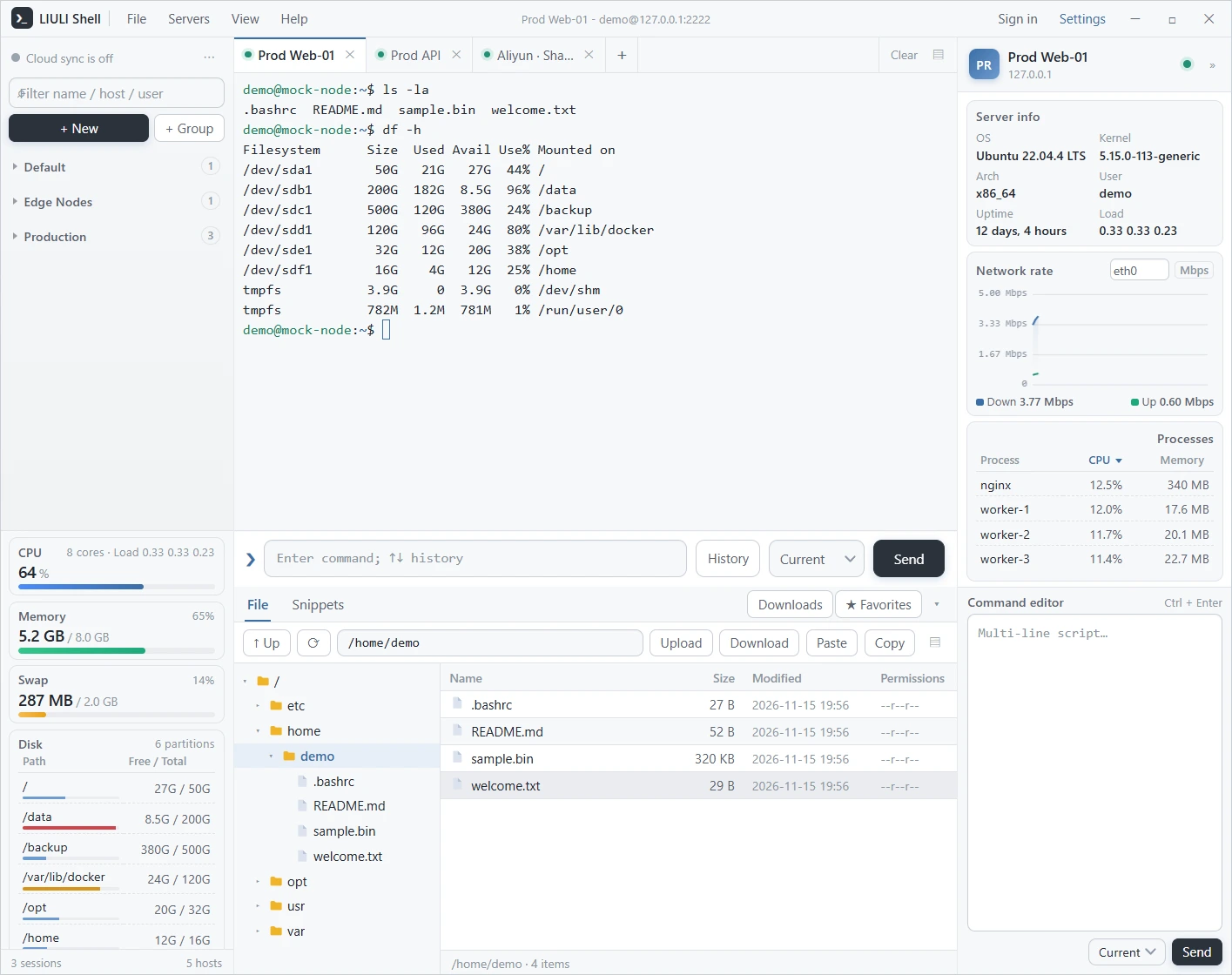
From connecting to servers and moving files to checking status and migrating config, the main workflows live in the client. Here's what each module does.
Organize servers into groups; select multiple, drag to move, or copy configs. Deleted connections stay in a 30-day recycle bin and can be restored anytime.
Each tab is an independent SSH session with command history, quick input, reconnect, and drag-to-reorder tabs; proxied sessions show a status badge.
The SFTP tree and file list stay in sync, and follow directory changes in the terminal. Upload, download, change permissions, or edit text inline.
Continuously samples CPU, memory, Swap, disk, network, and processes. Charts rescale automatically, so abnormal load is easy to spot.
Downloads are managed in a dedicated window; pause, cancel, or clear tasks while watching progress, speed, and status.
Supports the official cloud service and custom WebDAV. Encrypted sync for servers, groups, and favorites with two-way merge across devices; manual sync and backup are also available.
Read FinalShell JSON backups or an entire config directory and rebuild groups by hierarchy. Preview before import; duplicates are skipped.
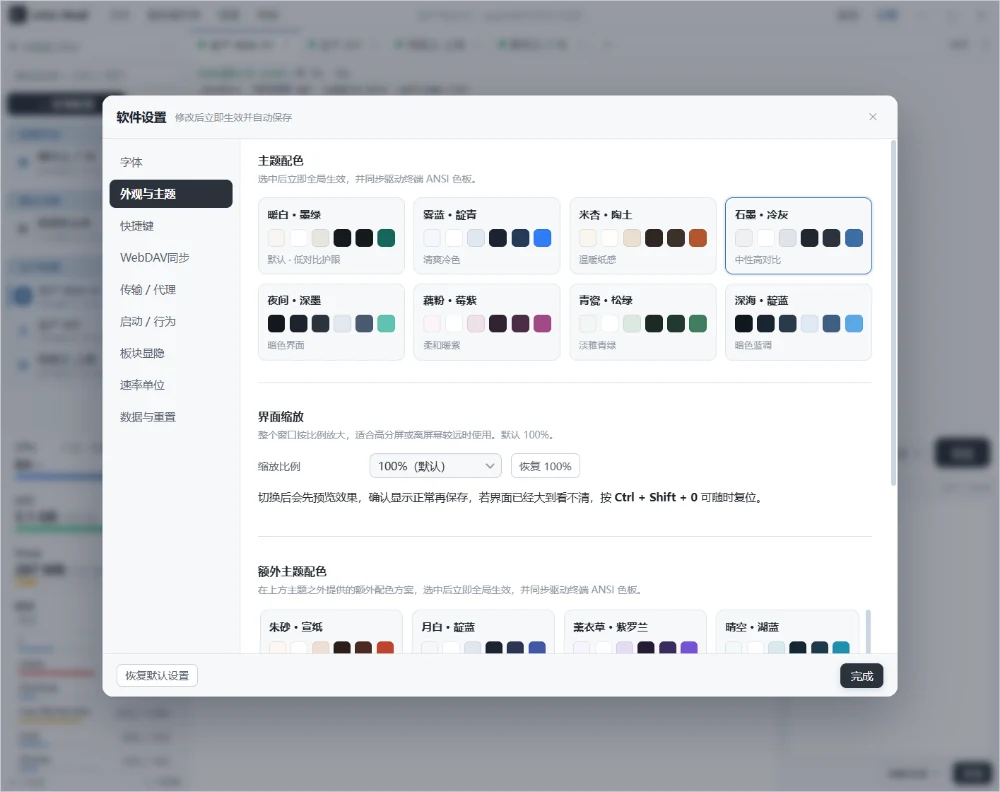
Eight light and dark themes; adjust fonts, sizes, UI scale, mouse behavior, and shortcuts. Changes save automatically.
Set HTTP / SOCKS5 proxies per connection or globally, with a default proxy and direct fallback for intranets and restricted networks.
Organize frequent commands into boards instead of retyping long commands; hand edits to the command editor.
Manage Common, Docker, Network, and other boards separately. Buttons show names only to keep the UI clean; boards and commands can be reordered by dragging.
Runtime stats are collected after connecting. Spot abnormal load in the client first, then decide whether to open a terminal.
Resource overview on the left, network speed and process usage on the right. Adjust refresh interval and units in Settings.
Credentials, config backups, and delete recovery all happen in the client, with less reliance on external services or manual steps.
Credentials are stored as encrypted strings and never shown in plain text. Config is backed up before writes; deleted servers and groups go to the recycle bin.
Drag to resize the columns or hide them as needed. Session tabs and window controls sit on top; the status bar shows active connections.
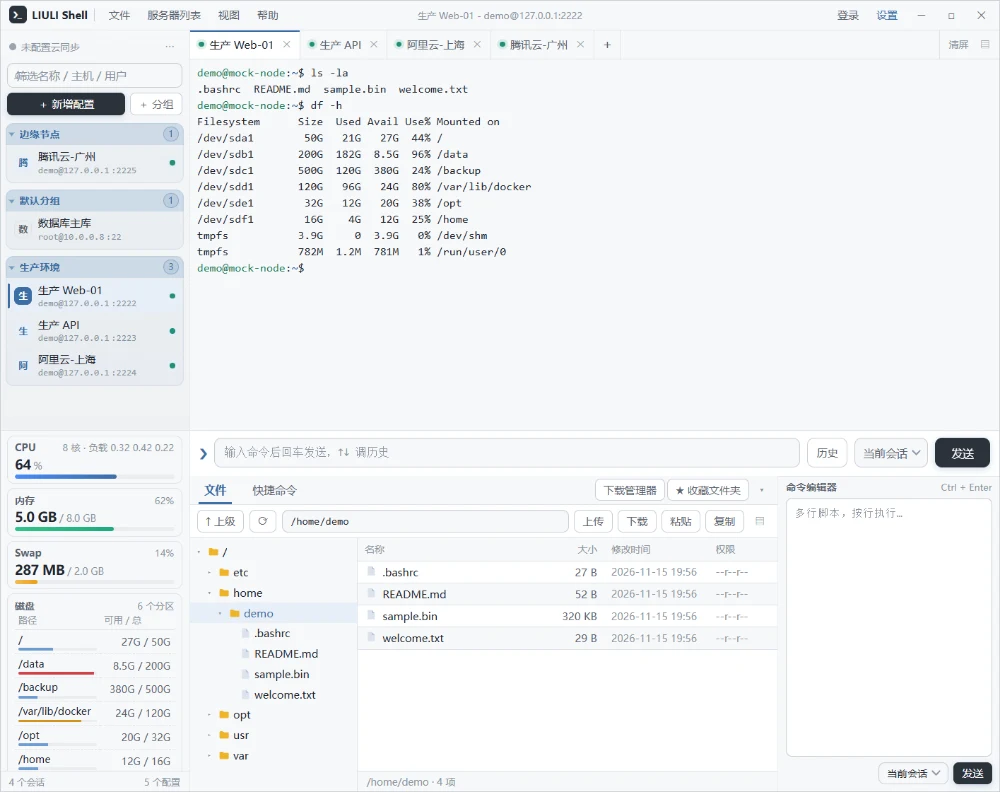
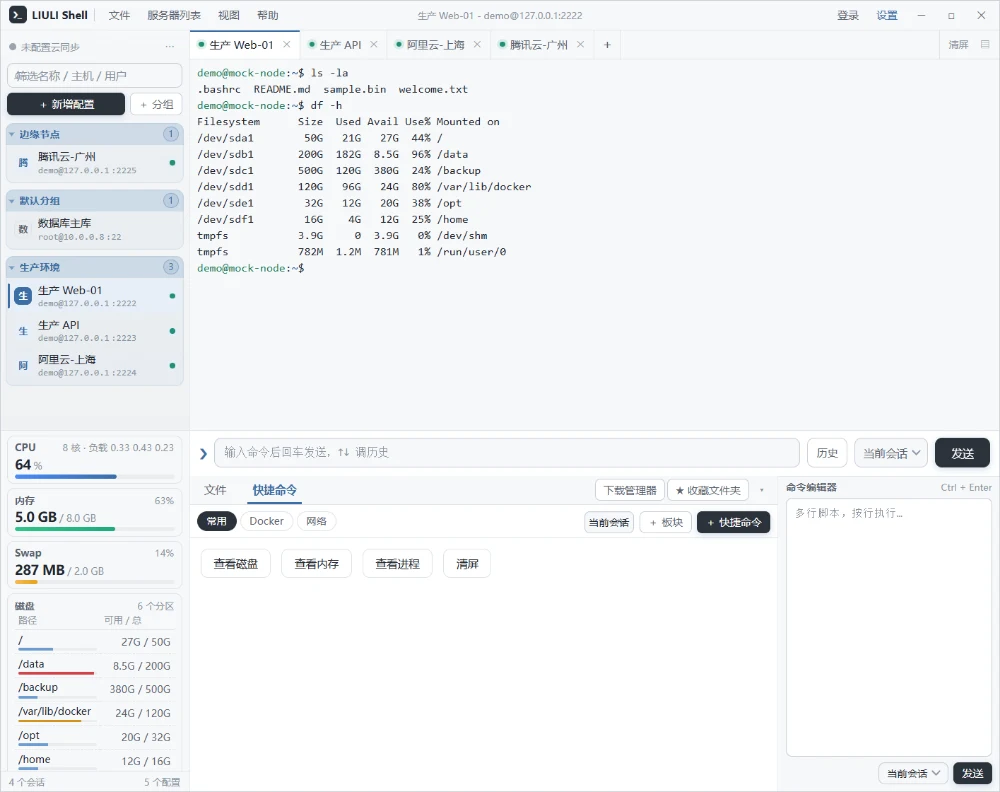
Both the client and this site are available in Simplified Chinese, Traditional Chinese, English, Russian, French, German, Japanese and Korean. Switching the language also switches the page URL and hreflang tags, and every version carries the same features and screenshots.
Settings are grouped by purpose and save automatically. Here are the six most-used groups.
Six light and two dark themes; the UI, terminal background, and ANSI colors change together.
Expand the full reference when you need manual control, distro-specific dependencies, or packaging error troubleshooting.
System library package names vary by distro; Ubuntu 24.04 and later use *t64. The three outputs differ: AppImage needs no install, deb uses package management, and tar.gz runs after extraction without FUSE.
scripts/build-linux.sh detects the distro and handles t64 package fallbacks.bash scripts/build-linux.sh — one command handles detect distro → install system deps → choose package type → package → offer install, with apt / dnf / pacman support. For dependencies only, use ... deps; for diagnostics, use ... check; for a broken environment, use ... repair. During install: deb uses apt install and creates desktop icons; AppImage is copied to ~/Applications/LIULI-Shell with an app menu entry and desktop icon.chmod +x dist/LIULI-Shell-*-x86_64.AppImage ./dist/LIULI-Shell-*-x86_64.AppImage # Install the deb on Debian / Ubuntu sudo apt install ./dist/LIULI-Shell-*_amd64.deb # Extract and run (no FUSE, no system directories) mkdir -p ~/Applications tar -xzf dist/LIULI-Shell-*-x86_64.tar.gz -C ~/Applications ~/Applications/LIULI-Shell-*/liulishell
AppImage uses the type-2 runtime and needs FUSE 2. Ubuntu 22.04 and earlier include it; 24.04 / 26.04 require manual installation. You can also extract and run without FUSE.
# Ubuntu 24.04 / 26.04
sudo apt install -y libfuse2t64
# Ubuntu 20.04 / 22.04, Debian 12
sudo apt install -y libfuse2

# Run without FUSE (slower start, same features)
./LIULI-Shell-*-x86_64.AppImage --appimage-extract-and-run

# Or use the tar.gz build, which needs no FUSE
# 1) Put it in a fixed location
mkdir -p ~/Applications
cp dist/LIULI-Shell-*-x86_64.AppImage ~/Applications/LIULI-Shell.AppImage
chmod +x ~/Applications/LIULI-Shell.AppImage

# 2) Extract icons (--appimage-extract creates squashfs-root here)
cd /tmp && ~/Applications/LIULI-Shell.AppImage --appimage-extract '*.png' >/dev/null 2>&1
mkdir -p ~/.local/share/icons/hicolor/512x512/apps
cp /tmp/squashfs-root/*.png ~/.local/share/icons/hicolor/512x512/apps/liulishell.png 2>/dev/null \
  || cp /tmp/squashfs-root/liulishell.png ~/.local/share/icons/hicolor/512x512/apps/ 2>/dev/null

# 3) Write the desktop entry ($HOME expands to your home dir)
mkdir -p ~/.local/share/applications
cat > ~/.local/share/applications/LiuliShell.desktop <<EOF
[Desktop Entry]
Type=Application
Name=LIULI Shell
Comment=Cross-platform SSH terminal and server manager
Exec=$HOME/Applications/LIULI-Shell.AppImage %U
Icon=liulishell
Terminal=false
Categories=Development;System;Network;
StartupWMClass=LiuliShell
EOF
chmod +x ~/.local/share/applications/LiuliShell.desktop
update-desktop-database ~/.local/share/applications 2>/dev/null || true

# 4) For a desktop icon, copy it and mark it trusted
cp ~/.local/share/applications/LiuliShell.desktop ~/Desktop/
gio set ~/Desktop/LiuliShell.desktop metadata::trusted true 2>/dev/null || true
# On localized systems the desktop folder may have a different name; adjust as needed
.deb users can skip these steps; installation writes /usr/share/applicationsautomatically and the app appears in the menu.
Requirements:macOS 12+ (Intel or Apple Silicon), Xcode Command Line Tools, Homebrew, Git, Node.js 20/22 LTS. dmg cannotbe built on Windows / Linux.
1. Base tools(xcode-select opens a dialog; wait for it to finish)
xcode-select --install
/bin/bash -c "$(curl -fsSL \
  https://raw.githubusercontent.com/Homebrew/install/HEAD/install.sh)"

# Add brew to PATH on Apple Silicon (Intel uses /usr/local/bin/brew; safe to rerun)
grep -qsF 'brew shellenv' ~/.zshrc || echo 'eval "$(/opt/homebrew/bin/brew shellenv)"' >> ~/.zshrc
source ~/.zshrc
2. Node 20 and Git
brew install node@20 git
brew link --overwrite --force node@20
node -v && npm -v          # expect v20.x
3. Source and dependencies(Remove old directories first to avoid stale files; pick Gitee or GitHub. Gitee defaults to liuli-shell; GitHub defaults to Liulishell; both clone explicitly into liuli-shell)
rm -rf liuli-shell Liulishell
# Gitee (recommended in China)
git clone https://gitee.com/liuliwanjiaweb/liuli-shell.git liuli-shell
# GitHub (recommended overseas; uncomment the next line and comment out Gitee)
# git clone https://github.com/LIULIWANJIA/Liulishell.git liuli-shell
cd liuli-shell
npm ci || npm install      # falls back to npm install if the lockfile doesn't match
npm run vendor             # copy xterm assets to src/renderer/vendor before packaging
4. Package(Fastest for the current architecture; for both, pass dist:mac)
npm run dist:mac                              # build x64 + arm64 together
npx electron-builder --mac dmg zip --arm64    # Apple Silicon only
npx electron-builder --mac dmg zip --x64      # Intel only
5. Output and cache:Output goes to ~/liuli-shell/dist/(*.dmg,*.zip); Electron and packaging tool downloads are cached in ~/Library/Caches/electron/and~/Library/Caches/electron-builder/; delete it to force a re-download.
6. Unsigned install:If Gatekeeper blocks the app after dragging it to Applications, right-click and choose Open, or run:
xattr -dr com.apple.quarantine "/Applications/LIULI Shell.app"
spctl --assess --type execute -vv "/Applications/LIULI Shell.app"   # check why it was blocked
Public distribution needs an Apple Developer ID certificate and notarization: set CSC_LINK(.p12 path or base64),CSC_KEY_PASSWORD; notarization also needs APPLE_ID,APPLE_APP_SPECIFIC_PASSWORD,APPLE_TEAM_ID; electron-builder handles signing and notarization.
npx electron-builder --mac dmg --universal(about twice the size of a single-architecture build, and noticeably slower).| Error / symptom | Cause / fix |
|---|---|
| Unable to locate package libasound2 | Ubuntu 24.04 / Debian 13 renamed system libraries *t64(e.g. libasound2t64,libgtk-3-0t64). Install the old name first; fall back automatically:bash scripts/build-linux.sh deps has this logic built in. |
| dlopen(): error loading libfuse.so.2 | AppImage needs FUSE 2 at runtime: on 24.04+ install libfuse2t64, and on 22.04 or earlier libfuse2; without FUSE, use --appimage-extract-and-run, or switch to .tar.gz. |
| Electron download times out / stuck at downloading | Set a mirror and retry:export ELECTRON_MIRROR=https://registry.npmmirror.com/-/binary/electron/,export ELECTRON_BUILDER_BINARIES_MIRROR=https://registry.npmmirror.com/-/binary/electron-builder-binaries/. |
| npm ci fails / lockfile mismatch | Delete node_modules and use npm install; Node below 18 won't install—use Node 20. |
| rpmbuild not found | Only needed for rpm: on Fedora install rpm-build; on Debian/Ubuntu install rpm and rpm2cpio packages, or skip the rpm target. |
| Permission denied (running AppImage) | Missing execute permission:chmod +x dist/LIULI-Shell-*-x86_64.AppImage. |
| errSecInternalComponent / signing failed (macOS) | keychain is locked:security unlock-keychain -p <password> ~/Library/Keychains/login.keychain-db then rerun; on CI also security set-key-partition-list. |
dist/by default. Linux outputs LIULI-Shell-*-x86_64 / *-arm64 / .AppImage / .deb (the script detects the architecture); macOS outputs .tar.gz/ .dmg . .zip.npm run vendor copies xterm.js and other frontend assets to src/renderer/vendor/; without this step the packaged terminal is blank.ubuntu-22.04,macos-14 runners) to build.dist/ installers and portable builds as Release assets (Windows *.blockmap is only for delta updates—don't upload it); don't commit node_modules/ and dist/.